
Use the Plan calendar
Week, Month, and Term views, workload-tinted days, personal events, and a one-tap Replan when life happens.
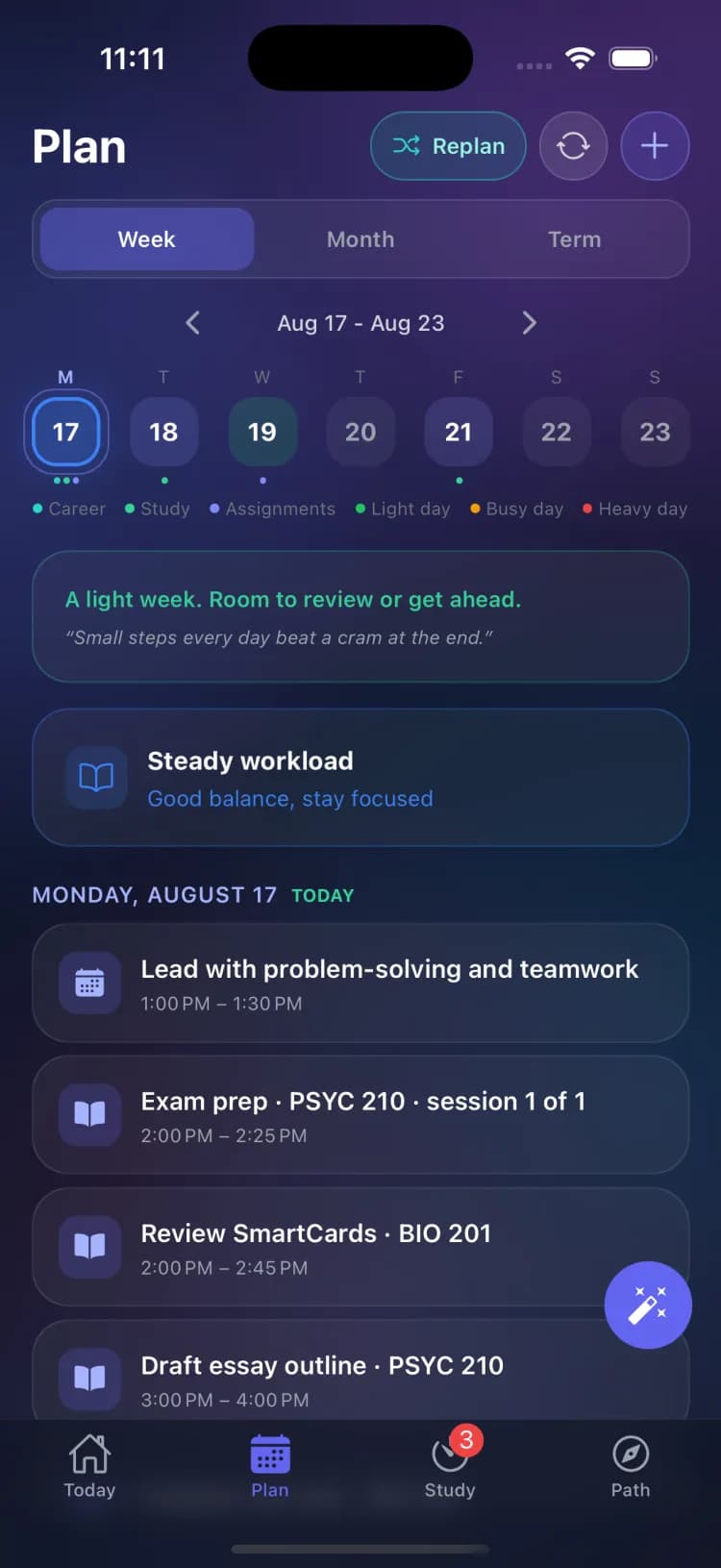
The Plan tab has three views. Week and Month show your classes, due dates, and study blocks, with days tinted by workload: light, busy, or heavy. Term zooms out to the whole semester.
Add personal events
Tap + and choose New event for anything that is not coursework: work shifts, clubs, the gym. Pick a type (Work, Extracurricular, Class, Study, Exam, Meeting, Personal, Reminder, or Other), set when and how long, and optionally make it repeat weekly, every 2 weeks, monthly, or yearly. Repeating events are created as a series in one tap.
Replan your week
Life happened? Tap Replan and PlanexAI moves your study sessions around new conflicts and tells you exactly what moved where. If nothing needs to change, it says so: "Your week already works."
See it in your other calendars
The sync icon in the Plan header shows whether your external calendar is connected. Two-way sync with Google or Outlook and a subscribe-only feed for Apple Calendar are both available.
Frequently asked questions
What do the colors under calendar days mean?
Workload intensity. A dot or tint marks assignments and how heavy the day is: light days are good for getting ahead, heavy days deserve protected time.
Related guides
Add, edit, and complete assignments
Create any kind of coursework, set priorities and time estimates, and check things off as you go.
Track grades and run GPA what-if scenarios
The Term view shows your semester shape, where your grades stand, and which course moves your GPA most; the calculator models any scenario.