
Upload a syllabus on the web
Drop a PDF syllabus into the dashboard and PlanexAI extracts the course, assignments, and due dates for review.
Upload from the dashboard
- 1Sign in at planexai.com and open your dashboard.
- 2Open the syllabus uploader: the PlanexAI Course Setup card on the dashboard, or the Syllabus upload page.
- 3Drag your syllabus onto the drop zone or click to browse for it.
- 4PlanexAI extracts the assignments, due dates, and course details, then shows you everything for review before the course is created.
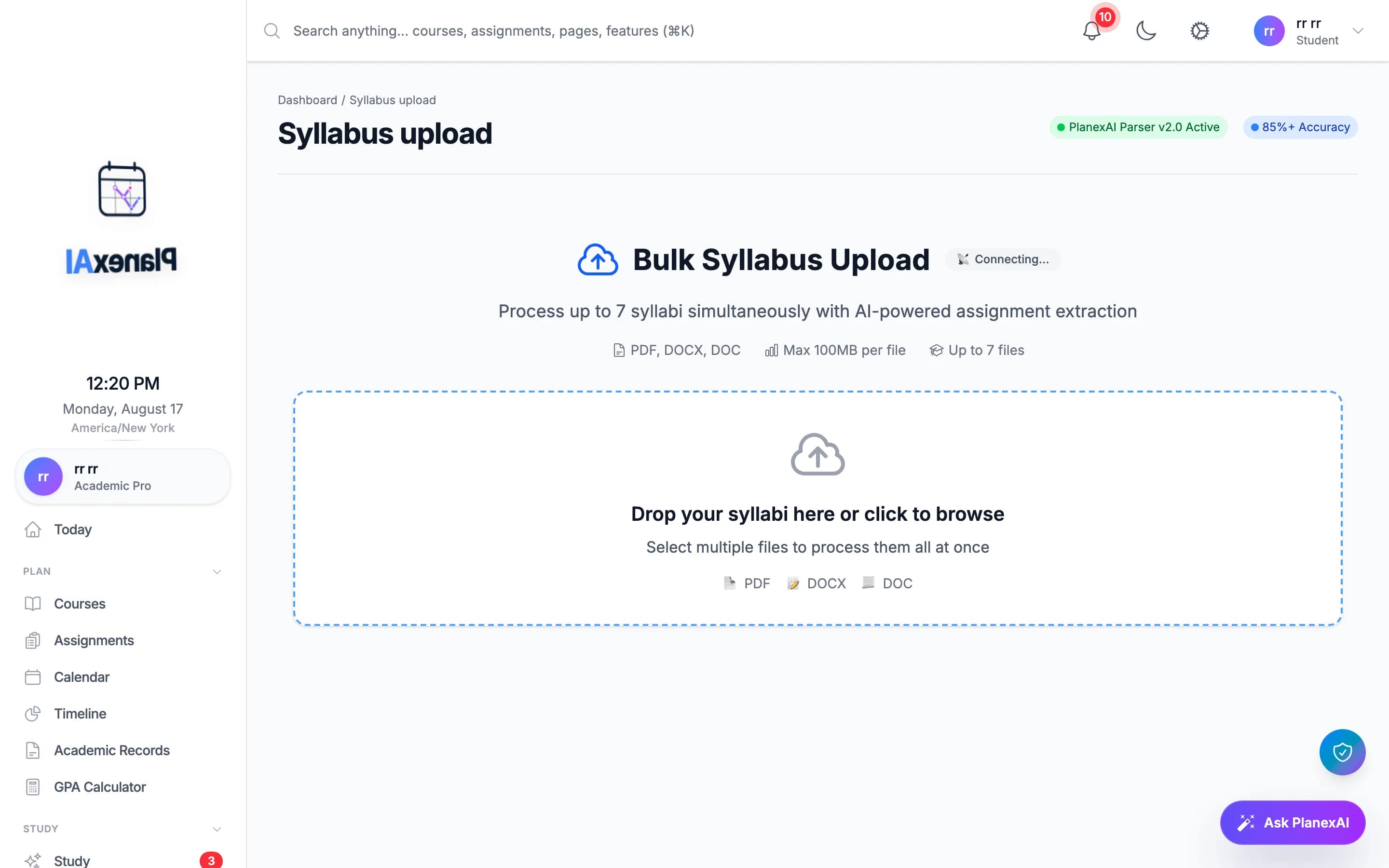
Free accounts upload one PDF at a time. Academic Plus and Pro get bulk upload: PDF, DOCX, or DOC, up to 7 syllabi at once at up to 100 MB each. For a printed syllabus, use the mobile app and scan it with your phone.
Review before it lands
Just like on mobile, nothing is created until you confirm. Check the extracted course details and assignments, fix anything that looks off, then create the course. Your new course and its assignments appear across the dashboard and the mobile app immediately.
Frequently asked questions
Can I upload a Word document on the web?
On Academic Plus and Pro, yes: the bulk uploader takes PDF, DOCX, and DOC. Free accounts upload PDFs; export the document as a PDF first, or use the mobile app, which reads PDF, Word, images, and text on every plan.
Related guides
Scan a syllabus with your phone
Point your camera at a syllabus or upload the file, and PlanexAI builds the whole course: every assignment, every due date.
Review what PlanexAI extracted
After a scan you review everything before it becomes real: fix details, exclude items, and shift old dates to the current term.