
Scan a syllabus with your phone
Point your camera at a syllabus or upload the file, and PlanexAI builds the whole course: every assignment, every due date.
Scanning a syllabus is the fastest way to set up a course. One scan creates the course, its schedule, the grading breakdown, and every assignment with its due date.
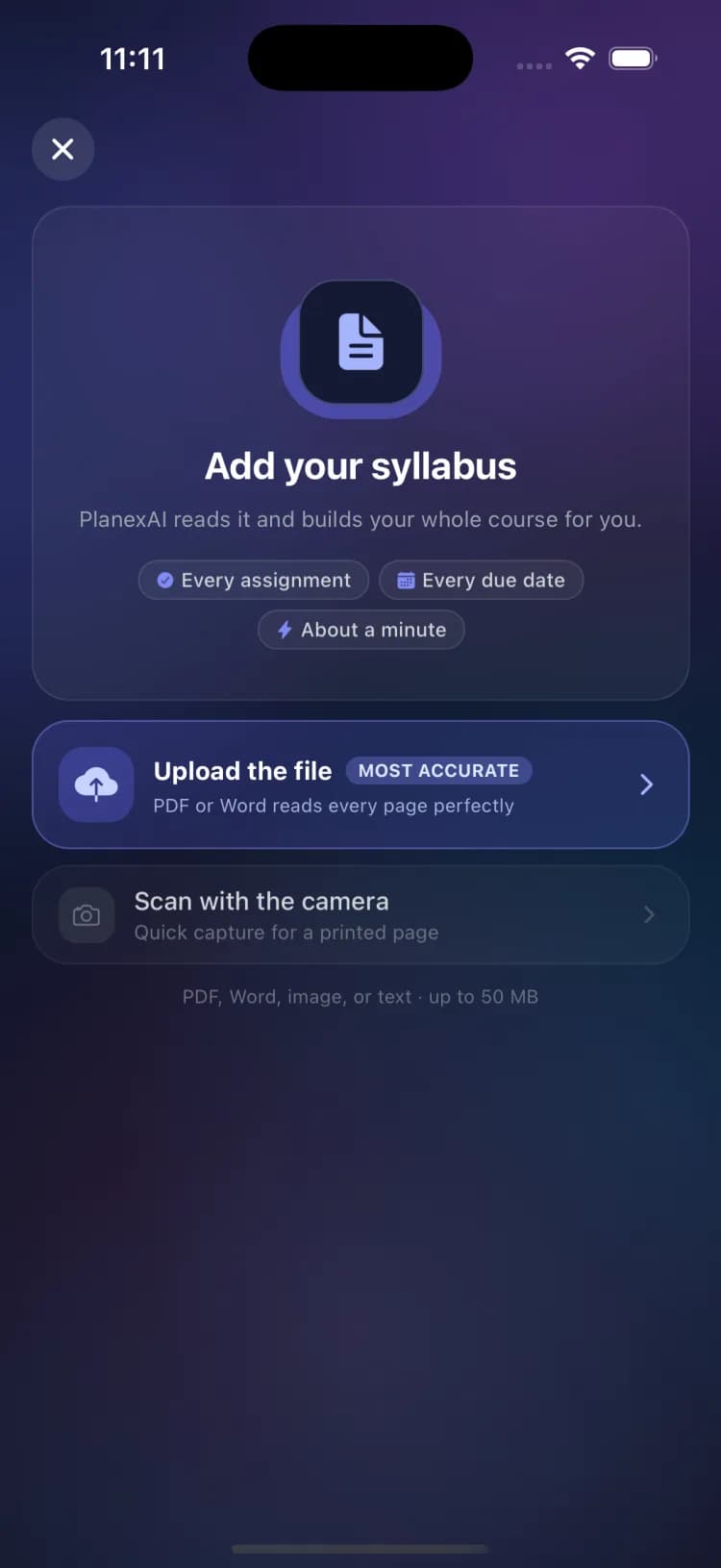
Start a scan
- 1Open the Plan tab and tap the + button, then choose Scan a syllabus. (The Today tab and Study tab have shortcuts too.)
- 2Pick a source. Upload the file is the most accurate: PDF or Word documents read every page perfectly. Scan with the camera works great for a printed page.
- 3If you use the camera: scan every page that matters, keep the page flat in good light, and fill the frame. The camera guide walks you through it.
- 4Wait about a minute while PlanexAI reads everything. There are trivia, Pong, and Snake to keep you company.
Files can be PDF, Word, image, or text, up to 50 MB.
What happens next
When reading finishes you land on the review screen, where everything is editable before anything is created. See Review what PlanexAI extracted for how to check and fix the results before you create the course.
Frequently asked questions
What file types can PlanexAI read?
On mobile: PDF, Word, images, or plain text, up to 50 MB, plus live camera capture for printed pages. PDF or Word gives the most accurate results.
Can I scan a multi-page syllabus?
Yes. Uploaded files are read in full, every page. With the camera, scan every page that matters in one session before finishing.
Related guides
Review what PlanexAI extracted
After a scan you review everything before it becomes real: fix details, exclude items, and shift old dates to the current term.
Upload a syllabus on the web
Drop a PDF syllabus into the dashboard and PlanexAI extracts the course, assignments, and due dates for review.
Add courses without a syllabus
No syllabus handy? Create a course by hand in under a minute and add its work as it comes.