
Get to know the web dashboard
A quick orientation to the planexai.com dashboard: the sidebar, the Today page, and the built-in page tours.
Sign in at planexai.com and you land on Today: overdue work first, then what is due, and tonight’s plan.
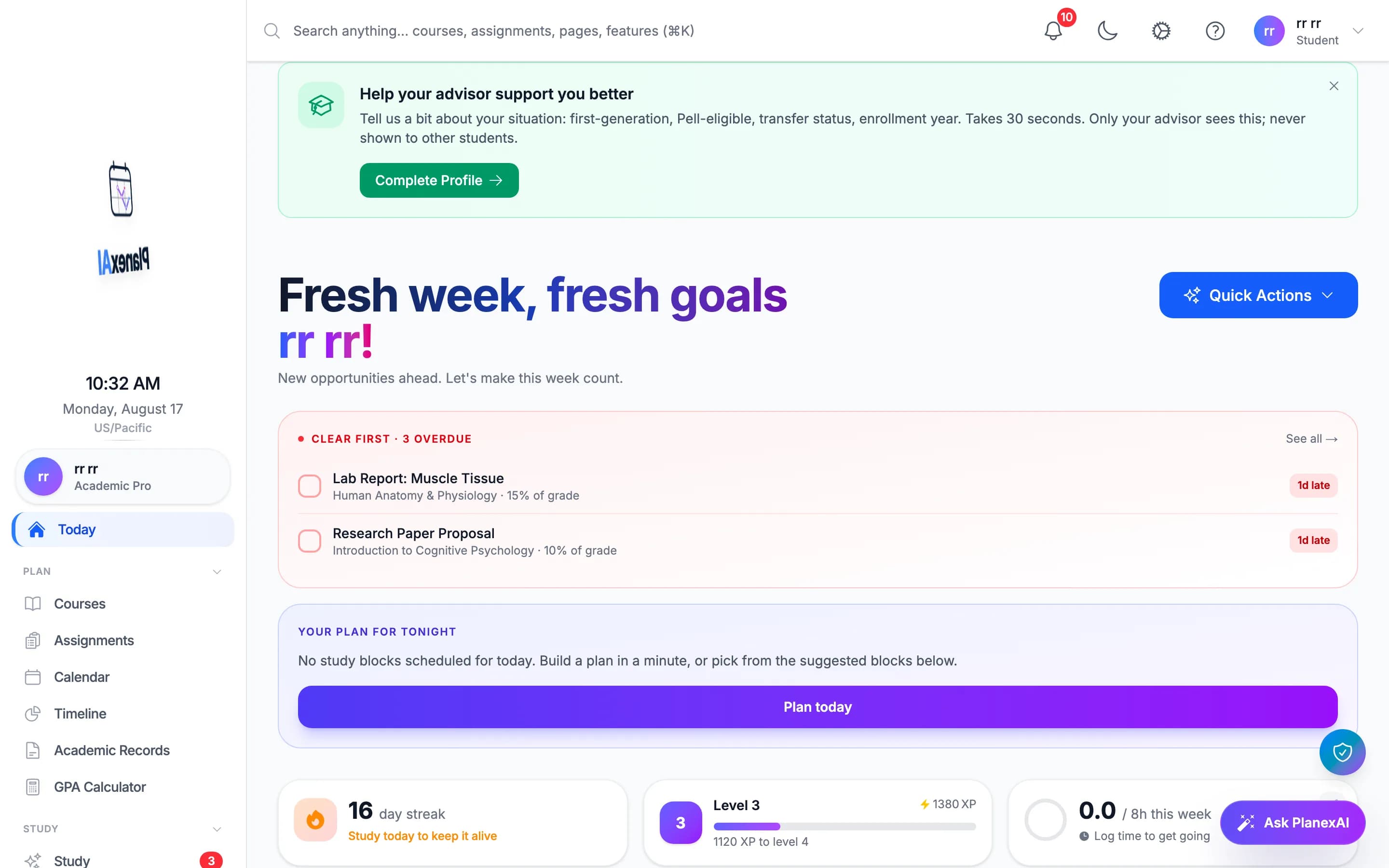
The sidebar
Everything lives in the left sidebar: Today, Courses, Assignments, Calendar, Timeline, Academic Records, and the GPA Calculator for planning; Study, SmartCards, Notes, and Practice Tests for studying; Career Pathways and Recommendations for where it all leads.
Built-in page tours
Key dashboard pages have a guided tour that points out each control in place. A getting-started checklist also tracks your first steps, like adding a course and connecting your calendar, and you can replay any page tour from the tour button whenever you want a refresher.
Web or mobile?
Use whichever is in front of you. The web dashboard is strongest for big-screen planning, transcripts, and practice tests; the mobile app adds camera scanning, widgets, and study on the go. Both stay in sync.
Related guides
Create your PlanexAI account
Sign up with your email or Apple account on the mobile app or at planexai.com. One account works everywhere.
Upload a syllabus on the web
Drop a PDF syllabus into the dashboard and PlanexAI extracts the course, assignments, and due dates for review.
Get to know the mobile app
The four tabs, the focus bar, and where to find your profile: a two minute orientation to the PlanexAI iPhone app.